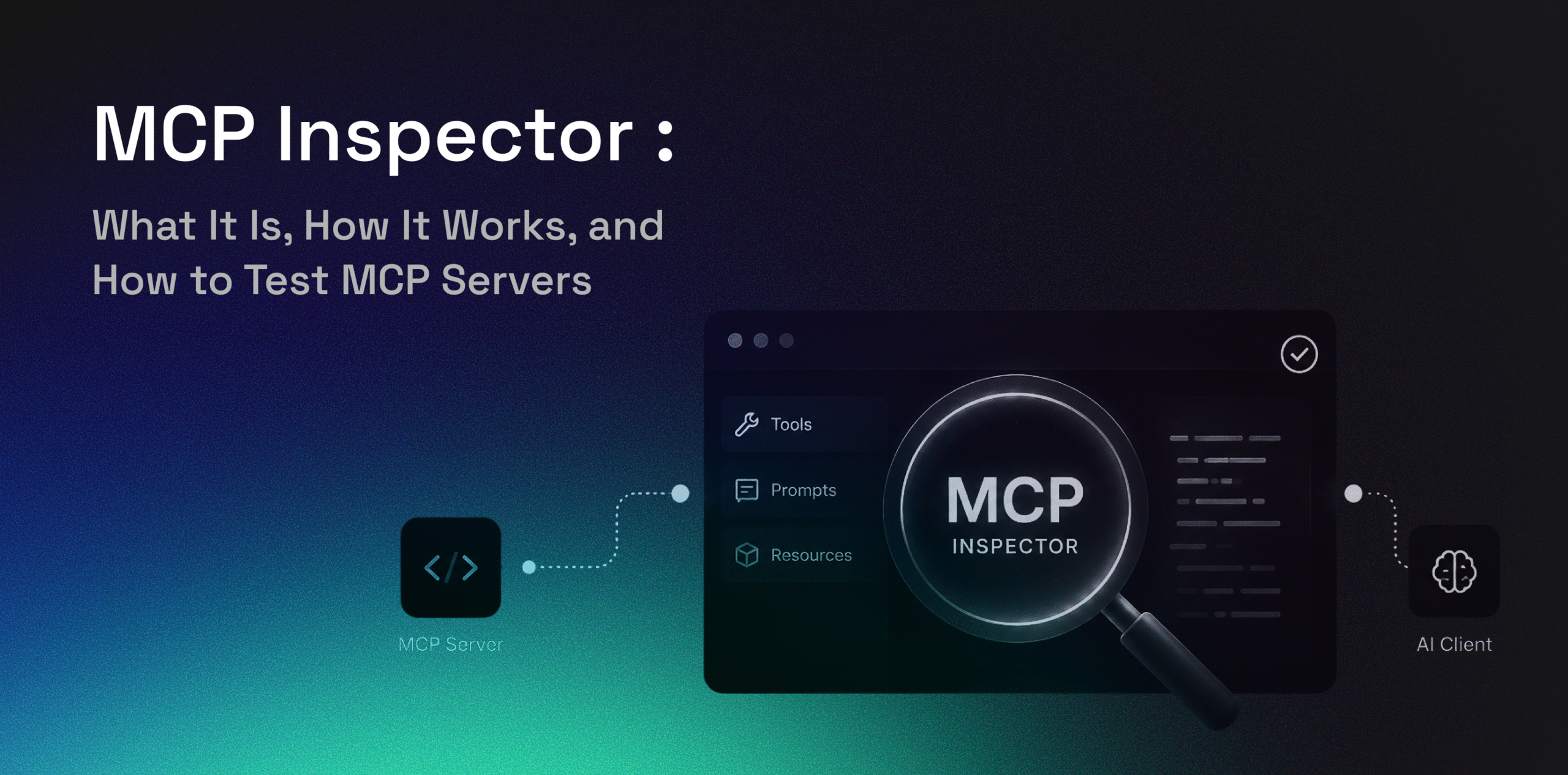
MCP Inspector is a developer tool for testing and debugging Model Context Protocol servers before they are connected to AI clients. It helps developers inspect what an MCP server exposes, including tools, prompts, and resources, and test whether those capabilities work as expected.
Developers can use MCP Inspector to check server connections, validate tool schemas, send sample inputs, review responses, and identify errors. For teams building MCP workflows around external data, MCP Inspector helps confirm that server responses are structured, usable, and reliable before deployment.
Key Takeaway
- MCP Inspector helps developers test and debug MCP servers before connecting them to AI clients.
- It can validate server connections, exposed tools, prompts, resources, schemas, responses, and error handling in a controlled environment.
- UI mode is useful for interactive exploration, while CLI workflows are better for repeatable or automated testing.
- MCP Inspector is a development and validation tool, not a replacement for production monitoring, security reviews, access controls, or runtime observability.
- For Factori MCP, Inspector can help developers confirm that real-world data tools return structured, reliable responses before they are used in AI workflows.
What Is an MCP Inspector?
MCP Inspector is a tool used to test and debug MCP servers. It lets developers connect to an MCP server, view available tools, prompts, and resources, send test requests, and inspect the server’s responses.
In simple terms, MCP Inspector works like a testing interface for MCP servers. Instead of connecting a server directly to an AI client and troubleshooting blindly, developers can use MCP Inspector to understand how the server behaves.
It is especially useful when building new MCP servers, validating tool schemas, checking response formats, and finding issues before the server is used in a live AI workflow.
Why Developers Use MCP Inspector
Developers use MCP Inspector to validate MCP server behavior before connecting the server to an AI client. An MCP server may expose tools, prompts, or resources, but each capability needs to be checked for structure, accuracy, and reliability.
MCP Inspector helps developers:
- Check whether an MCP server starts correctly
- View exposed tools, prompts, and resources
- Test tool inputs and outputs
- Debug schema, connection, or transport issues
- Review server responses before deployment
This makes MCP development faster and more reliable. Instead of discovering problems inside an AI client, developers can test the server directly and fix issues earlier.
How MCP Inspector Works and How to Use It
MCP Inspector works by connecting to an MCP server and displaying the capabilities exposed by that server. Once connected, developers can review available tools, prompts, and resources, run test requests, and inspect responses or errors.
A typical MCP Inspector workflow looks like this:
| Step | What You Do | What MCP Inspector Shows |
| 1. Start MCP Inspector | Run MCP Inspector from the terminal | Testing interface |
| 2. Connect the server | Select or enter the MCP server | Connection status |
| 3. Review capabilities | Check tools, prompts, and resources | Server capabilities |
| 4. Send test inputs | Enter parameters and run a request | Tool response or error |
| 5. Inspect results | Review outputs, logs, and failed requests | Server behavior |
| 6. Fix and retest | Update the server and test again | Whether the issue is resolved |
This workflow helps developers identify whether an issue is related to the server connection, tool schema, request input, response format, or error handling.

How to Test MCP Servers With MCP Inspector
Testing an MCP server with MCP Inspector should include more than checking whether the server connects. Developers should also validate tool discovery, schemas, responses, resources, prompts, and error handling.
Start by connecting MCP Inspector to the MCP server. Once the server loads, check whether all expected tools, prompts, and resources appear. If a tool is missing, the issue may be in the server configuration, registration logic, or transport setup.
Next, test each tool with sample inputs. Check whether required fields are clear, optional fields behave correctly, and responses match the expected format. If an error appears, review whether the message gives enough context to fix the issue.
Use this checklist:
| Test Area | What to Check |
| Server connection | Does the MCP server start and connect properly? |
| Tool discovery | Are all expected tools visible? |
| Schema validation | Are required parameters and fields correct? |
| Tool response | Does the server return the expected output? |
| Error handling | Are errors clear and useful? |
| Resources | Are exposed resources available and readable? |
| Prompts | Do prompts appear and run as expected? |
| Retesting | Does the issue stay fixed after changes? |
After fixing an issue, run the same test again. Retesting helps confirm that the server now behaves correctly and that the fix did not create another problem.
MCP Inspector Features
MCP Inspector includes features that support MCP server testing, debugging, and validation.
Server Connection
MCP Inspector helps developers connect to MCP servers and check whether the server is available. This is the first step in confirming that the server can be tested.
Tools Testing
Developers can view the tools exposed by the MCP server, enter test parameters, and inspect the output. This helps validate tool schemas, required inputs, optional fields, and response quality.
Resources Testing
If the MCP server exposes resources, MCP Inspector can help developers view and test them. This helps confirm whether the right data, files, or resource references are available through the server.
Prompts Testing
Some MCP servers expose prompts. MCP Inspector can help developers check whether prompts appear correctly and return expected behavior.
Logs and Notifications
MCP Inspector can help developers review protocol activity, responses, and errors. This makes it easier to understand where a request failed and what needs to be fixed.
UI Mode vs CLI Mode
MCP Inspector can be used through a visual interface or command-line workflows. Both modes support MCP server testing, but they are useful in different situations.
| Mode | Best For | Why It Helps |
| UI Mode | Interactive debugging | Easier to explore tools, prompts, and resources visually |
| CLI Mode | Repeatable testing | Useful for scripted checks and automated workflows |
UI mode is better for manual exploration and debugging. CLI mode is better when teams need repeatable tests as part of a development workflow.
Common MCP Inspector Use Cases
MCP Inspector is most useful during MCP server development and testing. Common use cases include:
- Testing a new MCP server before connecting it to an AI client
- Debugging broken tool calls
- Checking tool parameters and response formats
- Testing local development servers
- Validating server responses before deployment
- Exploring third-party MCP servers carefully
For developers building MCP servers, Inspector reduces uncertainty. It shows what the server exposes, how it responds, and where errors appear.
MCP Inspector Limitations
MCP Inspector is useful for testing and debugging, but it is not a complete production monitoring tool. It is mainly designed for development workflows.
It does not replace application logs, runtime observability, security reviews, or access controls. Teams still need monitoring and governance when MCP servers are used in production environments.
Developers should also be careful when testing untrusted MCP servers. Any server that connects to tools, data, or external systems should be reviewed before broader usage. MCP Inspector can help validate behavior, but it should be part of a larger security and reliability process.
Factori MCP
Factori MCP connects AI agents with real-world business data through MCP-compatible workflows. It helps teams bring external data signals into AI workflows without depending only on static files, dashboards, or manual analysis.
Factori MCP can support use cases across location intelligence, mobility data, POI data, visit intelligence, audience insights, site selection, market analysis, and demand forecasting. For example, an AI agent can use MCP-connected tools to answer questions about trade areas, competitor presence, audience movement, or market demand.
MCP Inspector can help developers test whether Factori MCP tools return the right responses before they are used more widely. This helps validate tool behavior, response structure, and confidence in AI-ready data workflows.
Conclusion
MCP Inspector helps developers build more reliable MCP servers by making testing and debugging easier. It allows teams to inspect server capabilities, test tools, validate schemas, review responses, and fix errors before connecting the server to an AI client.
As more AI workflows depend on MCP servers, structured testing becomes more important. MCP Inspector gives developers a practical way to reduce integration issues and build stronger connections between AI clients, external tools, and business data.
FAQs
Does MCP Inspector require an MCP client?
No. MCP Inspector can test an MCP server directly, so developers do not need to connect the server to an AI client first.
Can MCP Inspector help find schema issues?
Yes. MCP Inspector can help developers check whether tool inputs, required fields, optional parameters, and response formats are structured correctly.
Can MCP Inspector be used with local MCP servers?
Yes. Developers commonly use MCP Inspector to test local MCP servers during development before moving them into broader workflows.
What should developers check before trusting an MCP server?
Developers should check exposed tools, response accuracy, error handling, access permissions, connected systems, and whether the server returns reliable outputs.
How does MCP Inspector support safer MCP development?
MCP Inspector helps developers test server behavior in a controlled environment before connecting the server to production workflows or AI clients.